.jpg)
How to Use Interactive Lessons on Zoom
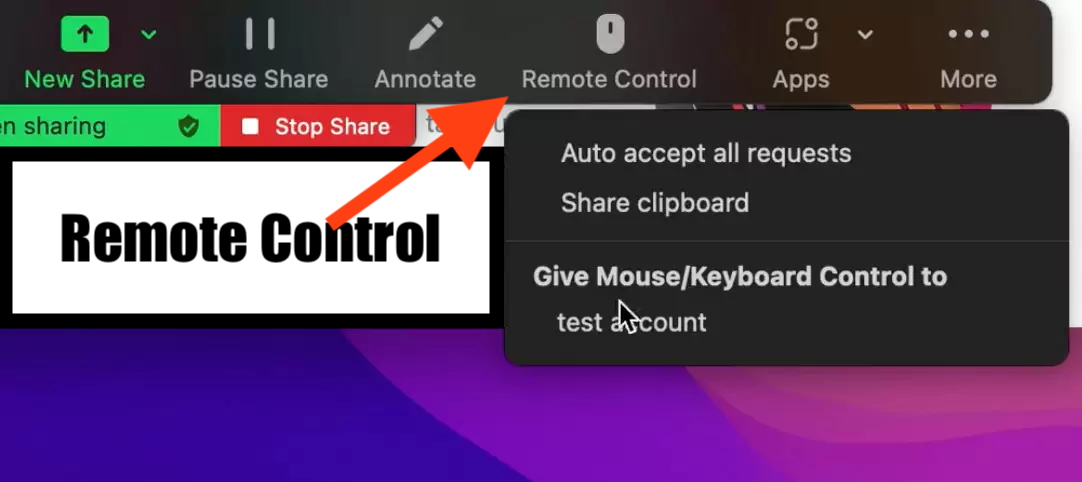
With Zoom, you can use the Remote Control feature to give control of your screen to your student. It can be a little laggy at times when you click buttons and things but once the student gets used to it, it works pretty well. You just have to be a little patient after clicking at times.
You can also consider using the Student Portal. You can give the student login credentials to log in and then your student shares their screen so that they can do all of the interacting. This also gives them the chance to review content later (which can make parents happy, depending on the parents).
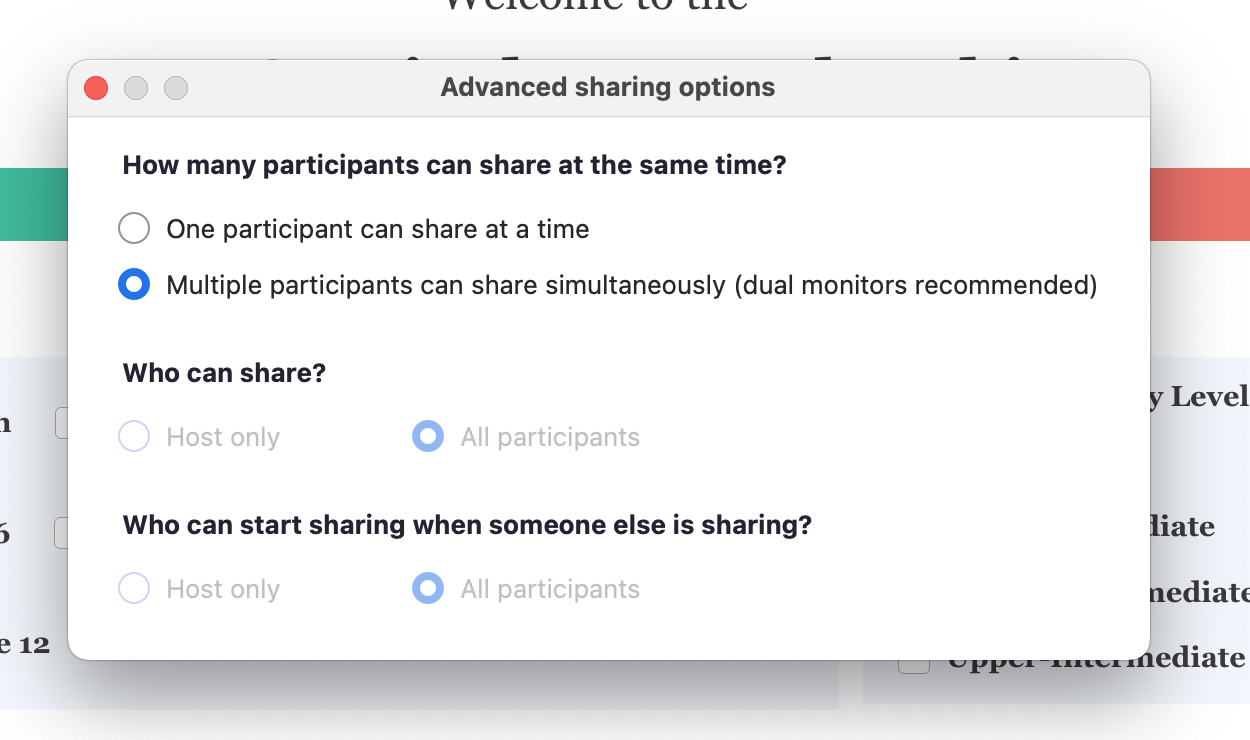
You can also try using the option to allow multiple participants to share their screens at the same time so that you can share your screen too while the student is sharing their screen with the student portal but it is recommended that you have two screens for this. (Go to Advanced Sharing Options under the Share menu and choose the option to allow Multiple participants can share simultaneously.)
One other option is to consider using a platform like Koala Go which allows you to use a shared browser that both of you can interact with at the same time when you log in to the membership. There is a monthly fee for that feature though and if you're using the free Zoom account that is definitely going to be cheaper.
Let me know if that helps or if you have any other questions.